
Please follow the below instruction to setup:
- 2-step verification: add an extra layer of security to your account. Please follow the instructions below.
- Recovery information: A recovery phone number or email address helps you reset your password.
- After you turn on 2-Step Verification, you must complete a second step to verify it’s you when you sign in. To help protect your account, Google will ask that you complete a specific second step.
- Use Google prompts: We recommend you sign in with Google prompts. It’s easier to tap a prompt than enter a verification code. Prompts can also help protect against SIM swap and other phone number-based hacks.
**[IMPORTANT NOTICE]: Please enrol in your 2-step verification within 2 weeks after you complete KOI course enrolment. Otherwise, you will be restricted to sign in to your KOI student email.
2-STEP VERIFICATION SETUP
- Open Google. [https://google.com]
- Sign into KOI email account.
- Please click Menu and “Account”.

- Click “Security” on the left side.

- Scroll down to “How you sign in to Google” and click “2-Step Verification is off”. (if this feature is on, please go to RECOVERY INFORMATION SETUP Step)

- Click “Turn on 2-Step Verification”.

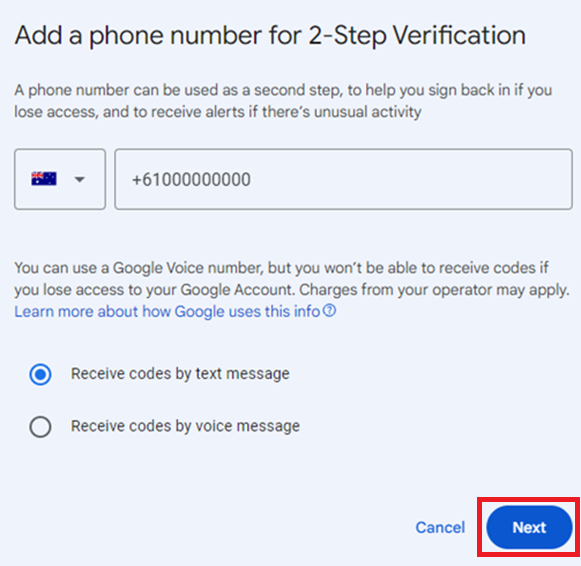
- Please select Australia phone code and enter mobile number and click “Next”.
- Please enter the code received from Google and click “Verify”.

- Click “Done” to complete the 2-step verification setup with mobile number.

Recovery information SETUP
1. From “How you sign in to Google”, click “Add a mobile phone number”.

2. Click “ADD RECOVERY PHONE”.

3. Enter mobile number and click “NEXT”.

4. Check mobile number and click “GET CODE”.

5. Enter the Code received from Google and click “VERIFY”.

6. From “How you sign in to Google”, click “Add an email address”. (If there are recovery email address already, please go to step 1 of GOOGLE PROMPTS)

7. Enter mobile number and click “Verify”.

8. Enter the Code received from Google and click “Verify”.

Google prompts
1. If you already have signed in KOI student email through Gmail app, you can skip the 2,3,4 steps. Please go to step 6 to check your Google prompts on your device. Otherwise, please proceed step 2.
2. Login to KOI student email through Gmail app on your mobile device
3. Please follow the instructions on the mobile screen.

* Please login with your KOI student email

4. During the login processes, you can see the 2-Step verification window, please click “Get a verification code at **** *** ***(your mobile number)” to verify your device and click “I agree” to finalise the verification. 
5. This step is to confirm your Google prompt on your device. Please go back to Security section from Account on your laptop and click “Google prompt”. If you can see your device, it will be okay to use a Google prompt for the 2-Step verification.

6. The Google prompt device has successfully set with your mobile on your Google account.


