If you miss a class due to illness, please email academic@koi.edu.au and attach a valid medical certificate. Requests without a valid medical certificate cannot be considered.
06/11/2019

If you miss a class due to illness, please email academic@koi.edu.au and attach a valid medical certificate. Requests without a valid medical certificate cannot be considered.
KOI student email uses Google account.
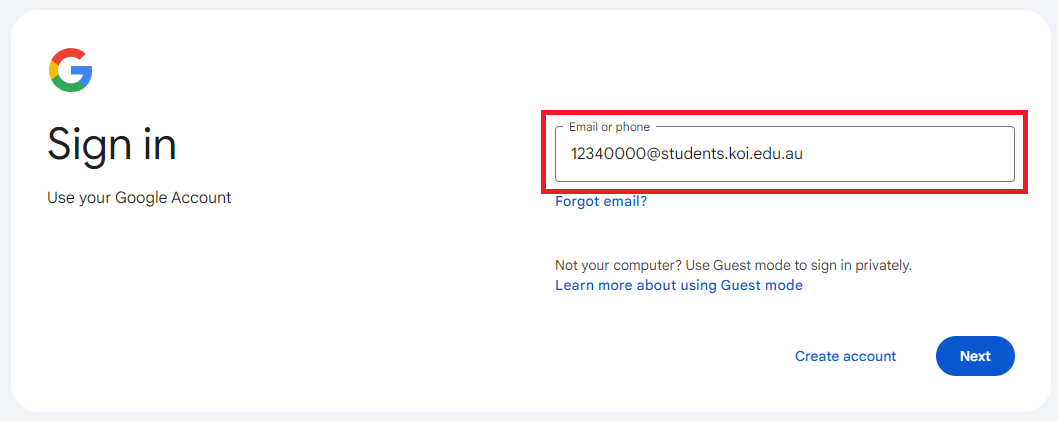

All students must use their KOI student email address when contacting any KOI staff as well as checking it on a regular basis.
You must add recovery information in order to reset your password in future.

Add your mobile number as recovery information


Add your personal email as recovery information


* If you didn’t add recovery information and forget your password, please contact IT support
[KOI IT Support: ITsupport@koi.edu.au]
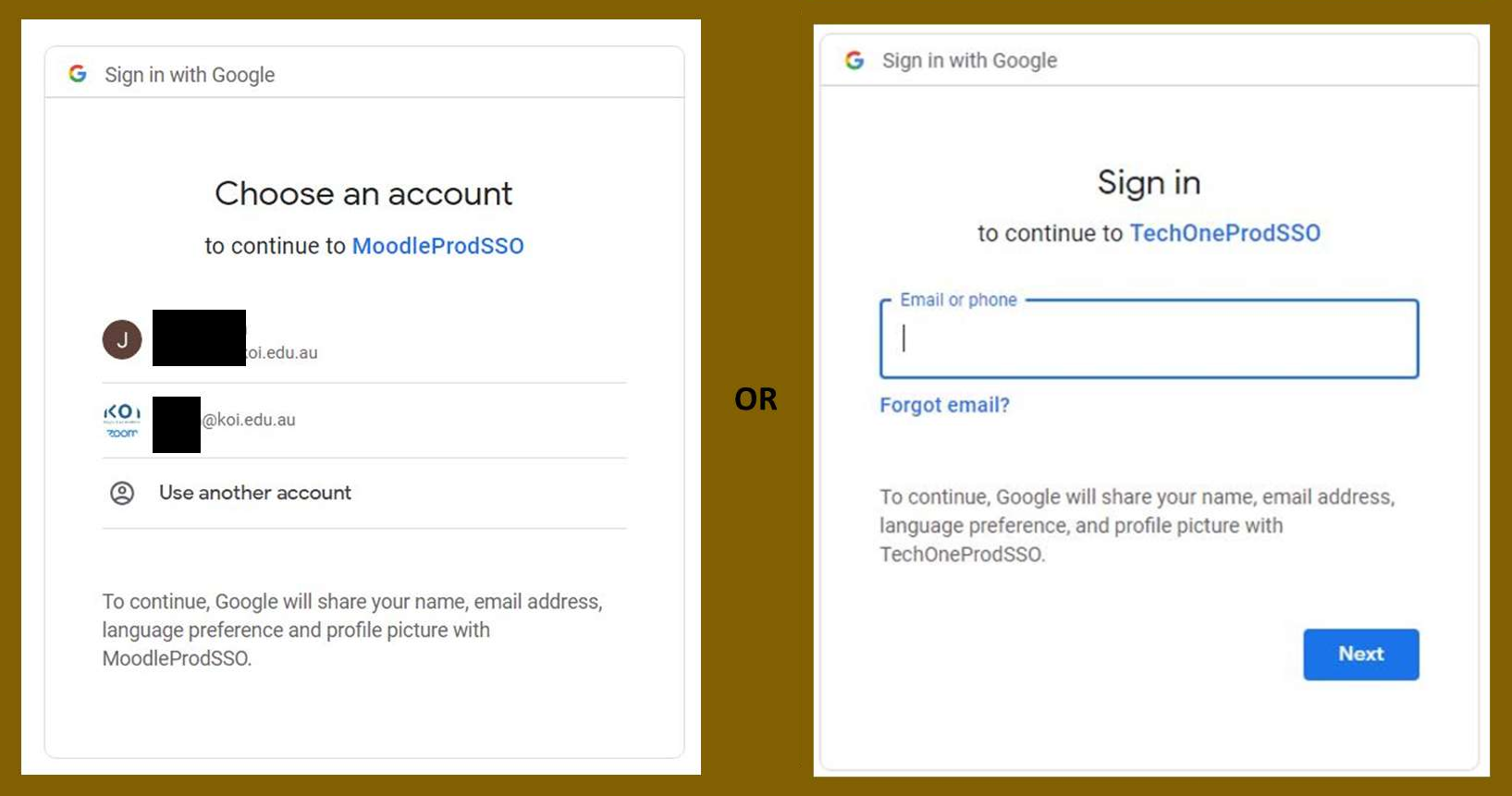
Setup your Google Single Sign-on (First time):



There is a Moodle app available that students can use on their iPhone, iPad or Android device. Apps are available in Google Play and also Apple Store. You can install the app directly from your Mobile device – search for “Moodle Mobile” the author/owner must be “Moodle Pty Ltd”
Upon opening the app student will be asked to provide the URL for KOI’s Moodle. The address to input is: https://moodle.koi.edu.au/moodle
Then just sign in with your username and password.
Note: If you have previously signed into the app and are having difficulties accessing the information, please try logging out and logging back in.
There is a textbook list on the side of the screen with information about the textbook for each subject. You just need to search for your subject. It gives you information about the textbook as well as the retail prices and the KOI price, along with other general information about the book such as Title, Author and whether ebook copies for the books are available.
All teachers’ emails are listed in the Teachers’ Contact List on the Contact Information menu on Moodle. It is made available for students to be able to find and contact the teachers for their subjects. It is recommended to use your KOI student email address when emailing teachers.
EBSCO is an ejournal database is listed in the Library Resources block accessible via the right hand side of the moodle page or on your moodle course page with ProQuest eBooks and KOI’s Library Catalogue. Links to these resources can also be found in the Student Information Centre. Students need to be logged in to Moodle to access the database.
There are direct links to your course at the bottom of the homepage, under the KOI News and announcements section. You can also access them from the left hand side of the screen in the Navigation block by clicking the ‘Dashboard’ link.
Course notes, provided by your lecturer, are found under your courses in Moodle. Just click on your course to find the notes that your lecturer has put up. Different courses have different set paces for the rate at which the notes are made available to students.
Printing your course notes requires you to download your course notes from Moodle. You need to save these files to the computer. You then need to send the document to the print release station to release you print job from there.
If you find that your subjects shown in Moodle are incorrect, email the library@koi.edu.au.
Printable copies of the Assignment coversheets can be found on Moodle in the Assignment Coversheet block which is on the right hand side of the screen. Students can also obtain copies which have already been printed from the library counter.

When trying to locate the Turnitin Assignment link in Moodle, students should look for the turnitin symbol, shown above.
Students can look at the Student User Manual found in the Turnitin Moodle Assignment block on the right hand side of the KOI Moodle homepage for advice on submitting assignments in Turnitin.
When submitting an assignment, students need to click on the link to their assignment and then go to the ‘My Submissions’ tab. From here they can upload their assignments. Students need to remember to read and tick the declaration box before their submission goes through and make sure that they have uploaded the correct file before they submit their assignment.
Students need to make sure that the document that they are submitting is one of the accepted document types in the Student User Manual. Also document files that are larger than 20MB will not be able to be uploaded.
Yes, students can resubmit their assignments into Turnitin as many times as they like up until the due date. However, if a student wishes to resubmit an assignment after the due date, they will need to contact their lecturer to have the original assignment removed so that they can resubmit. Before this resubmissions are not limited.
Information about referencing for assignments can be found in the Student Information Centre. The Student Information Centre is a Moodle course that all students are enrolled in. It also provides students with information that could prove valuable to their studies such as helpful links to dictionaries, other resources and printing information.
New students enrolled before the start of the trimester can access Moodle from Monday, Week 1.
New students enrolled after the start of trimester can access Moodle 24 hours after enrolment, or within the next business day.
You can access Moodle through the main KOI website, from the Students menu, by going to Current Students and selecting E-Learning on the drop down menu or just going to moodle.koi.edu.au.
If this is the first time for you to access the KOI Moodle site, please click the “Sign in with Google” to login.
If you can’t sign in to KOI Moodle using “Sign in with Google”, please contact itsupport@koi.edu.au during business hours (9am – 5pm, Mon – Fri, Australian Eastern Standard Time (AEST)).
If you want to use basic authentication with username and password, you can still use it.
In this case, you may be required to change your temporary password when logging into Moodle for the first time. This change would apply to your Moodle account only. The new password has to be at least eight characters long, contain one capital letter, one lower case letter, and one number.
You can reset your password by clicking on the Lost password? link below. For further assistance with your Moodle login problem, please contact library@koi.edu.au during business hours (9am – 5pm, Mon – Fri, Australian Eastern Standard Time (AEST)).
If you have forgotten your Moodle password go to KOI Moodle. Then, click ‘Lost password?’

Once you have clicked on this, put in your username (Student ID number) or type in your KOI student email address in the appropriate box. An email should be sent to your student email account, for information on accessing the student email account check the above tab labelled “KOI Email Services”.
The reset information for your Moodle password is sent to your student email account, for information on accessing the student email account check the above tab labelled “KOI Email Services”. It may take up to at least 15 minutes for the email to arrive.
If you still cannot access Moodle, please contact Library Team [library@koi.edu.au] with your student email
You should be able to change your password while you are logged into Moodle. To do so just:
1) Click on the picture profile
2) Select Preferences

3) Click on ‘Change Password’

4) Enter a new password and save
Visit KOI student portal (https://koit1sms.t1cloud.com)


Please send an email to [itsupport@koi.edu.au] with your student email, if there are any issues or questions.
Available Computers for Students
Student PCs are available on Quiet room and Print Bay/Student Lounge in York Street.
Students need to sign in with their own KOI PC/Wifi account which is the same as your student ID number (10-digit number).
Installed Software
Student PCs at York street campus have applications for your study such as Microsoft office 365, MYOB Accountright and Mikes Bikes (Business Project).


About Printing Service
Printing is a free service offered for the KOI students who made full payment.
$9 of free credit will be recharged every week(resets on every Monday).
What if my credit is exhausted or too low for printing?
If you printed or photocopied more than your free balance, you can purchase Printing voucher from the Library. Purchased printing credit will net be expired and free credit will be used first.
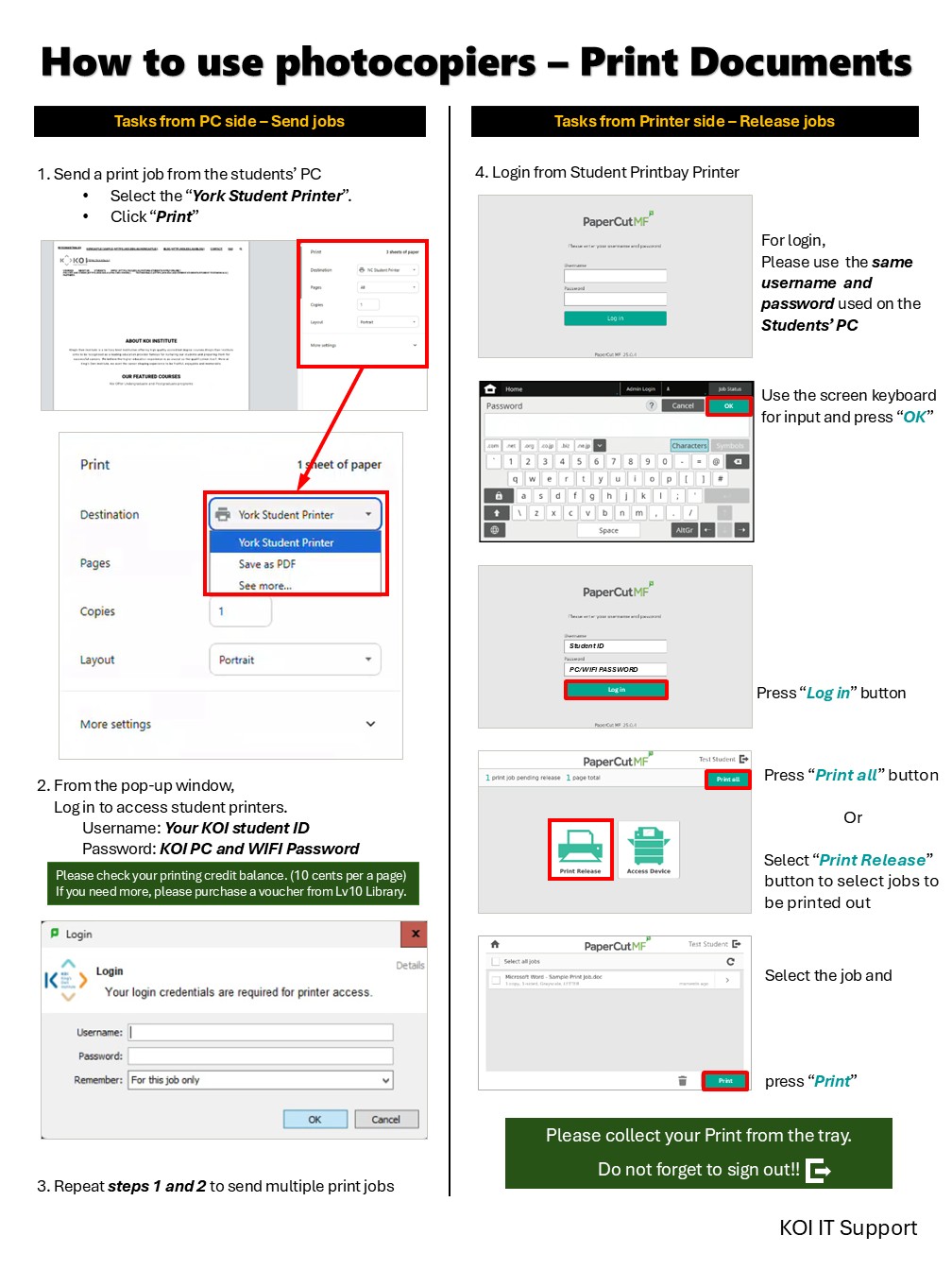
How Can I print from KOI student PC?
You can print documents only from reserved Printbay PCs and Library PCs on each Campus(York/Newcastle).
When you print documents, our print server will hold your job until it is finally released. In order to finish your printing job, you need to go to the printer. Once you log in and push print button, print, your documents will be printed at the printer. Your printing job on the server will be held for an hour until you print out, and can be printed out from any Student Printer(L7/L8/L9/L10 of York or GF Student Lounge of Newcastle).
** When I try to print, there is a message saying “Denied Printing” **
Printing service is only offered to the students Currently enrolled.

How do I connect to KOI student WiFi?
When you are in campus, please find “KOI_STUDENT_WiFi” SSID(Name).
To connect to this network, please follow the instructions below.


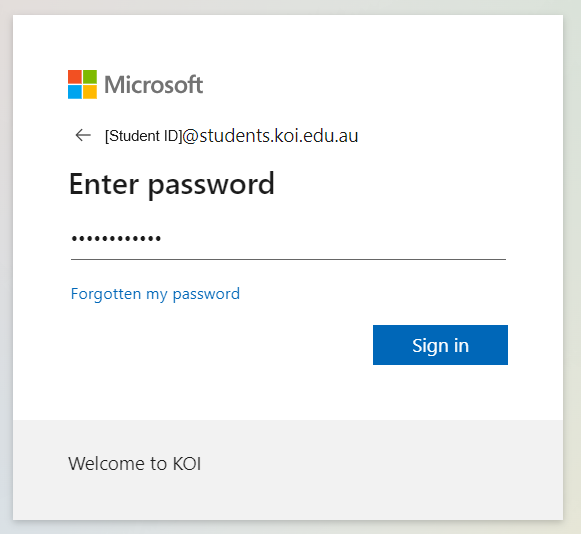
After you finish set up your MS Authenticator, you can start to use Microsoft 365 apps online.

If you have not registered MS Authenticator yet, please refer to “How to setup MS Authenticator app?” on the IT support FAQ page


For more information about office 365, Please refer to the page:
https://www.microsoft.com/en-gb/education/products/microsoft-365
!!The Office 365 account password is shared with the KOI Campus PC/WiFi Login password.
This means if you changed the password, your KOI Campus PC/WiFi login password will be changed as well.
For more detailed information, please check “How to reset the password of KOI computer access/ WiFi / Print / Ezproxy?” on the IT support FAQ page.
**[IMPORTANT NOTICE]: Please enrol in your 2-step verification within 2 weeks after you complete KOI course enrolment. Otherwise, you will be restricted to sign in to your KOI student email.


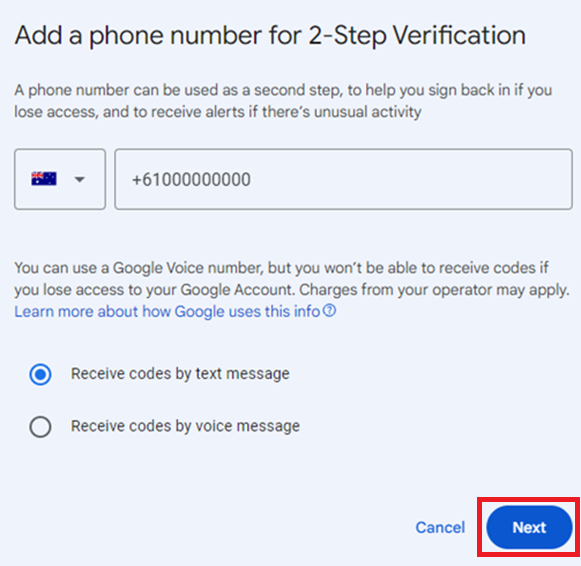


1. From “How you sign in to Google”, click “Add a mobile phone number”.

2. Click “ADD RECOVERY PHONE”.

3. Enter mobile number and click “NEXT”.

4. Check mobile number and click “GET CODE”.

5. Enter the Code received from Google and click “VERIFY”.

6. From “How you sign in to Google”, click “Add an email address”. (If there are recovery email address already, please go to step 1 of GOOGLE PROMPTS)

7. Enter mobile number and click “Verify”.

8. Enter the Code received from Google and click “Verify”.

1. If you already have signed in KOI student email through Gmail app, you can skip the 2,3,4 steps. Please go to step 6 to check your Google prompts on your device. Otherwise, please proceed step 2.
2. Login to KOI student email through Gmail app on your mobile device
3. Please follow the instructions on the mobile screen.

* Please login with your KOI student email

4. During the login processes, you can see the 2-Step verification window, please click “Get a verification code at **** *** ***(your mobile number)” to verify your device and click “I agree” to finalise the verification. 
5. This step is to confirm your Google prompt on your device. Please go back to Security section from Account on your laptop and click “Google prompt”. If you can see your device, it will be okay to use a Google prompt for the 2-Step verification.

6. The Google prompt device has successfully set with your mobile on your Google account.
Download instruction: Microsoft authenticator-single page version PDF
1. Open Microsoft 365 website [https://www.office.com]
2. Click “Sign In” on the top left of the page.

3. Enter KOI student email address as username and click “Next”
* Please enter KOI domain password after this step.

4. Click “Next” to setup multi-factor authentication.

5. [From Mobile Device] Please download the “Microsoft Authenticator” app.

6. Click “Next”

7. [From Mobile Device] Click “Add account” -> “Other (Google, Facebook, etc.)” -> “Allow”.

8. Click “Next”

9. Scan the QR code with the mobile Microsoft Authenticator app and click “Next”
*The QR code on the below image is a sample so please do not scan it
10 Enter the 2-digit code shown in the Computer input it on your Microsoft Authenticator app and click “Next”


11. Click “Done” to complete the multi-factor authentication setup.

!! Important !!
※※※※From Mar 2024, MS Teams meeting is replacing Zoom for the hybrid classes.※※※※
MS Teams username is KOI student email address and password is KOI computer access password which is same as MS Office 365 account:
KOI is using “MS teams for work or school” for the hybrid class rooms
Please go to https://www.microsoft.com/en-us/microsoft-teams/download-app

For more detailed instruction, please refer following link or video instructions:
https://www.microsoft.com/en-us/microsoft-teams/education
!! Important !!
KOI IT recommends using Windows system instead of MAC system for BIT, MIT or Accounting students who need MYOB AccountRight app.
For the software installation related to the class, Please contact Lecturers/Tutors of the subject.
Note 1: MS Office 365 for MAC
MS Access/Publisher is not available on MS Office 365 for MAC. You can run office for Windows OS on MAC using Apple Boot Camp(free), VMware Fusion(became free for personal) or Parallels Desktop(paid). You also need a genuine Windows 10 license for your MAC as well.
Note 2: MYOB
AccountRight is designed for use on computers using the Windows operating system, like a PC. If you’re using a Mac, consider using MYOB Essentials which runs in a web browser and can be used on both Windows and Mac. If you want to install AccountRight on an Apple Mac, you’ll need to install Windows on your Mac first. You can do this using Boot Camp (a Mac utility that allows you to install other operating systems) or virtual software such as Parallels or VMware.
Note that running AccountRight on virtual software may affect performance and speed. And while many users report a good experience, it’s not tested or supported by MYOB. Once you’ve installed Windows on your Mac, you can install AccountRight.
Please notice that if you have an Apple M1/M2/M3/M4 chip, Boot Camp will not work as it requires a Mac with an Intel processor.
To install Windows for ARM(not 100% compatible with normal Windows 11) on your M1/M2/M3 Mac, you can use Parallels® Desktop for Mac(Annual subscription required) or VMware Fusion Pro(free for personal).
https://docs.vmware.com/en/VMware-Fusion/13/fusion-13-user-guide.pdf
*Free credit only valid for 1 year.
If you use them all, you need set payment method on your MS account and pay for it.
So please check your usage and after use, deactivate services from Azure to prevent unnecessary cost.
https://azure.microsoft.com/en-au/pricing/
https://azure.microsoft.com/en-au/free/students/
https://azure.microsoft.com/en-au/free/free-account-students-faq/
Students need to sign in MS login account with koi email prior to using this website.
For more detailed information, please check “How to login, install and reset Microsoft office365?” on the IT support FAQ page.
1. Go to https://azure.microsoft.com/en-au/free/students/
2. Click “Start free”

3. Sign in with koi student email

4. Your name will be automatically filled in, choose the country as Australia and type King’s Own Institute then select King’s Own Institute (Sydney, NSW) for School name.

5. Also, you need to type your date of birth and solve the puzzle to prove you are not a robot at the same page. Then, Click “Verify academic status“

6. Enter personal detail and click “Sign up”

7. Now you receive free $100 Azure credit.

For the pricing info, please refer this page:
https://azure.microsoft.com/en-au/pricing/
Students need to sign in MS login account with koi email prior to using this website.
Please refer to “How to login, install and reset Microsoft office365?” on the IT support FAQ page.
Students may need to uninstall existing MS Office product before installing MS Project.
(MS Office can be reinstalled later)
1. Go to https://azureforeducation.microsoft.com/devtools
2. Click “Sign in”

3. Enter KOI student email and click “Next”

4. Enter Microsoft account password (Same as KOI computer access password) and click “Sign in”

5. Click Software on the left panel

6. Search the software wish to download

7. Click a link from the result

8. Click “view key” on the right bottom of the page to get the product key.

9. Click “Download” on the right bottom of the page to download the software installation file.

10. Install software with the installation file and product key.
* For more information, visit the following link – Azure Dev Tools for Teaching FAQ
To check your attendance, login into the Student Portal and click the “Academics” menu on the left hand side of the page then go to “My Attendance”.
Please lodge all complaints / suggestions to the Academic Services team or the Student Services team who are available via Reception or email the complaint / suggestion to acdemic@koi.edu.au or studentserv@koi.edu.au or you may also drop it in the suggestion box located at Reception in each of the KOI locations.
All dates and times are available on the E-Learning portal. Some important dates and times will be shown on the screen at Reception. If you can’t find a specific date or time please contact Reception
The Counselling Service provided by King’s Own Institute is a confidential, free counselling service provided to any KOI student who is seeking additional support. Students can choose to access these services when they require them, or they may be referred by other members of staff who have identified some risk factors within the student’s life.
Counselling is a safe and confidential collaboration between qualified counsellors and clients to promote mental health and wellbeing, enhance self-understanding and resolve identified concerns.
One of the great things about counselling is that it is an adaptive service, and can provide help for a wide range of circumstances.
No, seeing a counsellor doesn’t mean you have a mental illness. However, there are some symptoms that do call for additional medical assessment. If such symptoms are identified the counsellor will ensure that you have appropriate information, referral to appropriate practitioners and follow-up support.
The purpose of counselling is to help you make your own decisions and for you to learn to be a wise guide for your own actions.
The counsellor will work with you respecting your values, choices and lifestyle, and assist you work towards the choices or changes that fit for you and your circumstances.
Counsellors work to a strict code of ethics which means they must inform you of the limits of confidentiality and then stick to these rules.
However, if you are worried about the implications of any breach of confidentiality you may wish to:
The KOI Counselling Service is Monday – Friday, 9 am-5 pm, with appointments available by request.
The counselling team is able to be contacted for bookings via the counselling email address, counselling@koi.edu.au. Once your email is received, a member of the team will endeavour to provide a response within 24hrs.
Alternatively, you are able to book an appointment in person or on the phone via reception at York St campus Level 9.
Students must submit an assessment extension request through “Student Support” on the Student Portal within three (3) working days of the assessment due date and provide a valid medical certificate as supporting documentation. Students will be notified of the outcome of their request and, if approved, advised of the revised due date.
Please note that approval of an extension is not guaranteed. Students are expected to submit the assessment as soon as possible after the original due date. Late penalties will apply to assessments submitted after the due date where an extension request has not been approved.
Students must submit an assessment extension request through “Student Support” on the Student Portal as soon as possible, but no later than three (3) working days after the assignment due date.
Supporting evidence explaining the circumstances that prevented submission must be attached (the form outlines acceptable circumstances and evidence). Students will be advised whether an extension has been granted and, if approved, the revised due date.
Please note that there is no guarantee that an extension will be approved, or the length of time granted. Students should aim to submit the assessment as soon as possible after the original due date. Late penalties will apply to assessments submitted after the extension date (if granted).
Students must submit a Deferred Exam request through “Student Support” on the Student Portal as soon as possible, but no later than three (3) working days after the exam date.
A medical certificate must be attached, and it must be signed and stamped by the doctor. The certificate must clearly state the medical condition; general terms such as “unwell” or “medical condition” are not acceptable.
Students will be notified if a deferred exam has been approved and advised of the deferred exam date. Please note that only one deferred exam date will be offered. Failure to attend the deferred exam will result in failure for the subject.
Approval of a deferred exam is not guaranteed.
Students must submit a Deferred Exam request through “Student Support” on the Student Portal as soon as possible, but no later than three (3) working days after the exam date.
Supporting evidence must be attached to explain the circumstances that prevented attendance (the form outlines acceptable circumstances and evidence). Students will be notified if a deferred exam has been approved and advised of the deferred exam date.
Please note that only one deferred exam date will be offered. Failure to attend the deferred exam will result in failure for the subject. Approval of a deferred exam is not guaranteed.
Lecturers’ email addresses are listed on the front page of each Subject Outline. Students may also contact lecturers and tutors through the E-Learning portal.
If you are unable to locate the contact details, please contact the Academic Team (academic@koi.edu.au) for assistance.
The final exam timetable is published during the end of Week 10 of the trimester. Students can access their exam details via the Student Portal.
Once logged in, go to Student Calendar and select the relevant subject. Exam details, including date, time, location, format, and permitted materials—will be displayed.
The exam timetable is also published on the Moodle E-Learning portal. Students are responsible for checking their exam timetable. The notification of the exam release date will be sent to your KOI email addresses.
Marks for assignments, mid-trimester exams, and tutorial participation are available via the Moodle E-Learning portal during the trimester.
Final (Result) grades/marks are available on the Student Portal under:
My Study > Your Course (For example: BIT/MIT/MBA) Overview
NOTE: If your results are not visible, they may be on HOLD due to:
• Outstanding fees, or
• Academic Integrity matters
If you are dissatisfied with your final grade, you may apply for a Review of Grades (ROG). Information and instructions will be emailed to your student email address by the Examination Team.
Students may apply using the link provided in the email to book an appointment with their lecturer or contact the Academic Team (academic@koi.edu.au) as soon as possible after results are released.
Please note that only one review appointment will be scheduled. Failure to attend will result in no second opportunity for review.
Please click here to calculate your GPA.
Online consultation information is available on the Moodle E-Learning portal homepage.
Students may book an online consultation with the relevant program lecturers or contact the Academic Team for further assistance.
If you have any question regarding withdrawal / deferral of subjects or your course, please contact Student Services (studentserv@koi.edu.au)
Please email the Admissions department (admissions@koi.edu.au) or contact our Admissions Officer through our KOI Reception desk at our York Street location or phone our receptionist on 02 9283 3583 and request to speak to an Admissions Officer.
Students may apply to change their course of study after completing their current trimester of study and it is subject to the approval of the Vice-President (Student Affairs). Students must complete an International Student Application Form or Domestic Student Application Form and email to admissions@koi.edu.au or handover the completed form to our KOI Reception or submit the application form via Student Portal .
Note: The application form must be submitted two (2) weeks prior to the start of the next trimester. Approval of an application to change a course of study is not guaranteed.
There are two types of academic transcripts:
Official Transcript – please submit a request through the Student Portal – Service and Forms- Document Request. ($10.00 fee will apply)
Unofficial Transcript is available for download through the Student Portal free of charge at any time.
Official Completion Transcript – Students who are eligible to complete the degree will receive a free Official transcript and a Completion Letter which will be available after the Completion date
Please contact Student Services (studentserv@koi.edu.au) for further queries.
You can request a replacement for completion documents by contacting Student Services (studentserv@koi.edu.au). Replacement Transcripts and Testamur will cost $15.00 each.
King’s Own Institute (KOI) encourages all students to collect their official documents in person for security and confidentiality. However, KOI understands that this may not always be possible.
Students who are unable to collect their official documents from KOI in person may authorise someone else to collect their documents, or may request documents be mailed to them. KOI will not send electronically (by email) an Official Transcript or Testamur. This can only be collected in person or sent by post. (Fees will apply, please contact Student Services: studentserv@koi.edu.au)
If you are unable to collect your documents you may:
Please note:
KOI cannot accept any responsibility for documents once they are provided to a third party or dispatched by post.
You have an obligation to notify KOI of any changes to your contact details (residential address, mobile number (if any), email address (if any) and who to contact in emergency situations) within seven (7) days. If you are an International student, you are required by Department of Home Affairs (DHA) to provide KOI with up to date contact details (residential address, mobile number (if any), email address (if any) and who to contact in emergency situations) within seven (7) days or you will be in breach of your visa conditions. Please email to admissions@koi.edu.au for your updated contact details or KOI Reception or updating the profile via Student portal.
KOI can only assist students who have their OSHC with KOI’s preferred provider, Australian Health Management (AHM). Please email the Finance Department accounts@koi.edu.au .
Students using other providers need to contact their provider directly.
Please submit a request through the Student Portal – Service and Forms-Document Request.
You may contact Student Services (studentserv@koi.edu.au) for further queries.
Information regarding immigration is available on the Department of Home Affairs website
https://www.homeaffairs.gov.au/
Students completing studies will receive a general information letter providing advice on a number of things that need to be done after completion.
After completion, all students on Student Visas and with CoEs, will need to contact the Department of Home Affairs (DHA) (www.homeaffairs.gov.au), to establish their eligibility to remain lawfully in Australia once they have completed course requirements.
Students may also seek advice and assistance from their agent or from a registered migration agent.
Temporarily extending a stay in Australia. Information about temporarily extending a stay in Australia can be found in the DHA Fact sheet – Temporary Residence Program
https://www.homeaffairs.gov.au/about/corporate/information/fact-sheets
Completing students will be issued with a “Completion Letter” and an up-to-date “Student Academic Record” which will include the date of completion.
Official notification of completion is through the last email address given by a student to KOI.
The date of course completion (Completion date) is the date on a letter from KOI that a student has met the requirements for a degree, diploma or certificate (A Completion Letter)
NOTE: Please note that the final date on a CoE or a Student Visa is not a completion date
Completion Letters and final Student Academic Records are made available as soon as possible after completion, but processing of documents may take up to 10 working days.
KOI is required by law to report the fact that students have completed their studies and that the CoE has been cancelled.
KOI cancels the student CoE effective from the completion date or shortly after the completion date.
Completion dates for every trimester are published yearly in the KOI Student Handbook under “Key Dates” – Certification of Completion.
Completion dates will normally be the Friday three weeks after the last day of examinations for the trimester.
KOI will still provide students with a hard copy of their transcript and completion letters if required. Please contact studentserv@koi.edu.au for more information.
You can also link your social media accounts to My eQuals to enable access through them once you activate your account.
Please contact the Academic Team (academic@koi.edu.au) and/or the Student Services Officer studentserv@koi.edu.au.
For a list of emergency and support information please click here.
Yes, you can share your academic documents with WES either by downloading the digital copy of the documents from MyeQuals or directly sending the URL link of the documents with WES so that they can view it via My eQuals.
Please contact the Student Services Team for the working/internships program in Australia studentserv@koi.edu.au.
Students wishing to interrupt their studies (e.g. trimester break, emergency leave, late start, or long-term medical leave) must obtain prior approval from KOI.
Please contact Student Services at studentserv@koi.edu.au for application instructions.
Students planning to take a short-term break may submit a Short-Term Break Form via the Student Portal. Requests must be made in writing and supported by valid reasons and documentary evidence.
The Academic Team may approve short-term breaks of up to two (2) weeks for valid reasons up to Week 9 of the trimester.


